Here’s the clear, simple difference between the three refresh types in Chrome DevTools — Soft Reload, Hard Reload, and Empty Cache & Hard Reload — and when to use each one.
🔄 Chrome Reload Types Explained
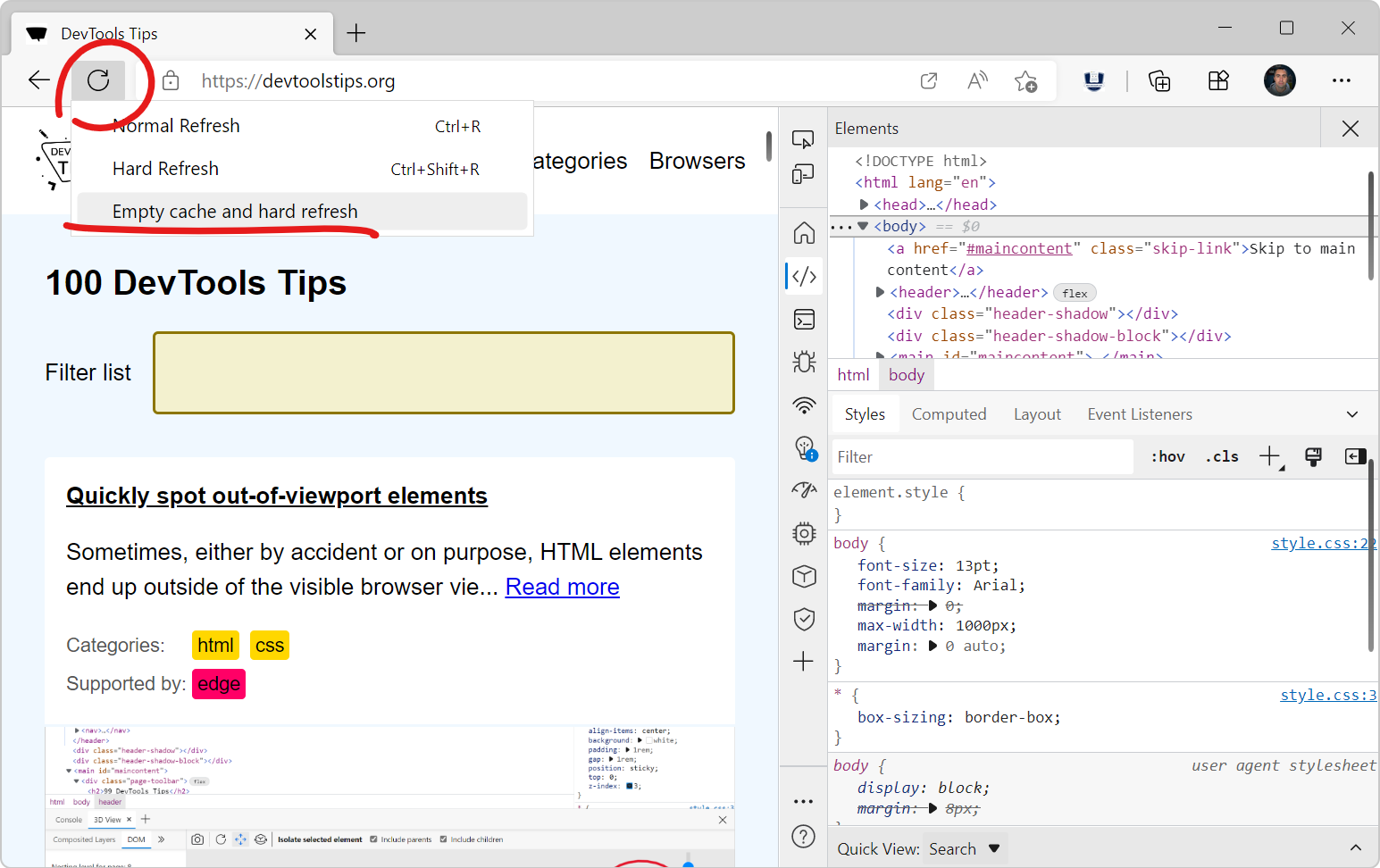

When you open Chrome DevTools (F12) and right-click the refresh icon, you get these options:
✅ 1. Soft Reload
What it does:
-
Reloads the page using the cached files when possible.
-
Only updates resources the browser thinks have changed.
-
Fastest reload type.
Useful when:
-
You’re debugging frontend logic.
-
You didn’t change CSS/JS filenames.
-
You want speed over freshness.
Does NOT:
-
Clear cache
-
Force re-download of all files
🔥 2. Hard Reload
What it does:
-
Forces the browser to bypass cache for the main HTML document.
-
Reloads the page and downloads resources again, but may still use some cached subresources (like images or fonts).
Useful when:
-
You changed CSS or JS files but did not change file names.
-
You want to ensure the browser fetches updated versions.
Does NOT:
-
Completely clear the cache—just skips using it for that load.
🚨 3. Empty Cache & Hard Reload (DevTools open required)
What it does:
-
Clears the entire browser cache for that site
-
Forces a full redownload of every resource
-
HTML
-
JavaScript
-
CSS
-
Images
-
Fonts
-
Service worker scripts (unless deeply cached)
-
This is the most powerful refresh.
Useful when:
-
Website changes aren’t showing at all
-
Service workers or aggressive caching are interfering
-
You're testing deployment changes
-
You need to guarantee a 100% clean load
Important:
Cache is cleared only while DevTools is open; otherwise, Chrome will cache things normally again.
🧠 Summary Table
| Action | Uses Cache? | Clears Cache? | When to Use |
|---|---|---|---|
| Soft Reload | Yes | No | Normal browsing; minor script changes |
| Hard Reload | Mostly no | No | When changes aren't showing but caching isn’t too aggressive |
| Empty Cache & Hard Reload | No | Yes | When the site refuses to update; deployment testing; debugging cache issues |
💡 Bonus Tip: Disable Cache Completely
In DevTools → Network tab → “Disable cache”
Works only while DevTools is open, prevents any caching.
If you want, I can also explain:
-
How service workers affect refresh
-
Why sometimes even Hard Reload doesn’t pull updates
-
How to force Chrome to forget PWA/manifest configs
Just let me know!


No comments:
Post a Comment